
Server Onboarding: Windows & Linux
Customer-facing onboarding guide for registering Windows and Linux servers, installing the agent, and verifying service health.
Overview
Use this guide to register Windows and Linux servers in SeqOps, install the agent package, and verify that services are running correctly. The overall flow is the same for both operating systems: register the server, collect the credentials, install the agent, and verify the service status.
Before you start
- •Confirm the customer can sign in to SeqOps.
- •Make sure you have administrator access to the target Windows or Linux server.
- •Allow outbound connectivity to the SeqOps platform endpoint required by your environment.
- •Expect server data to appear in SeqOps within 6–24 hours after successful onboarding.
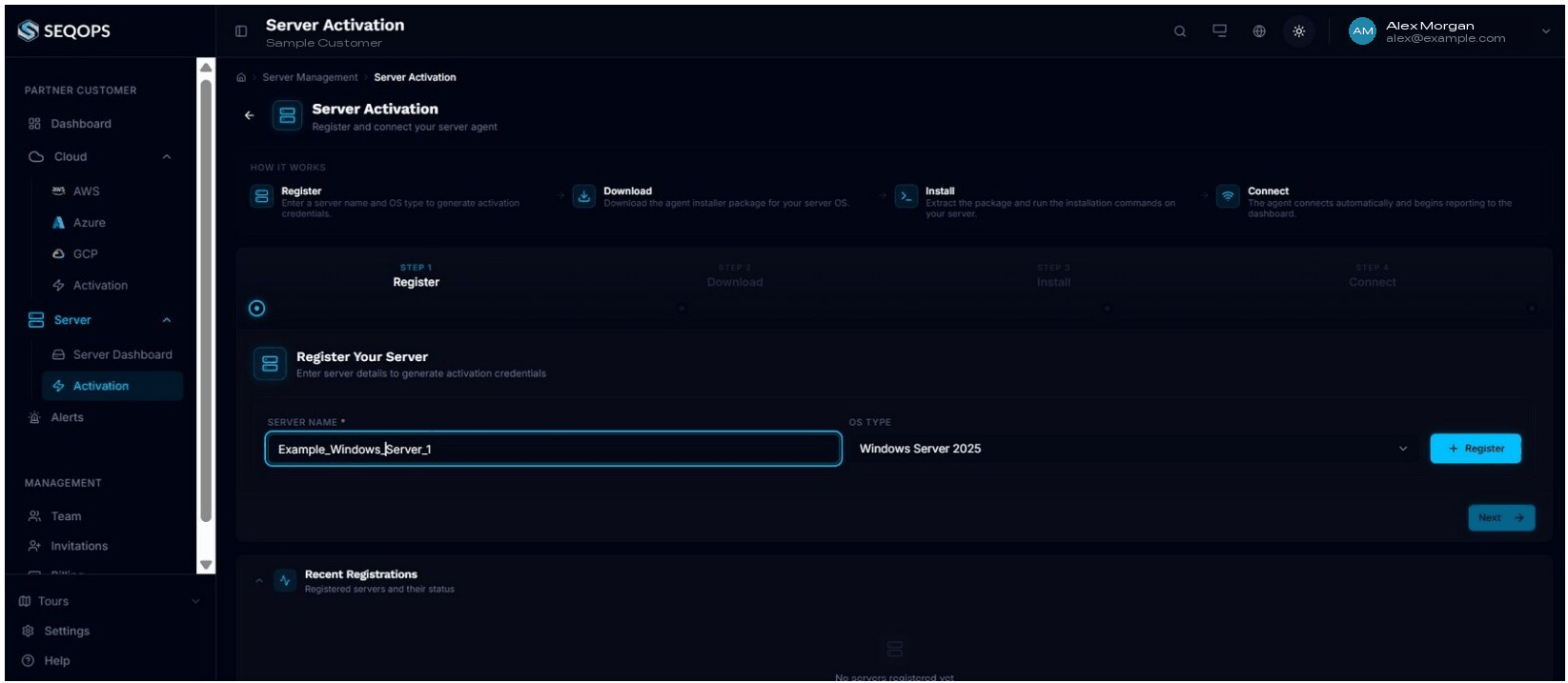
Step 1 — Register the server in SeqOps
- Open Server → Activation.
- Enter the server name.
- Select the operating system type when prompted.
- Click Register.
Step 2 — Copy the server credentials
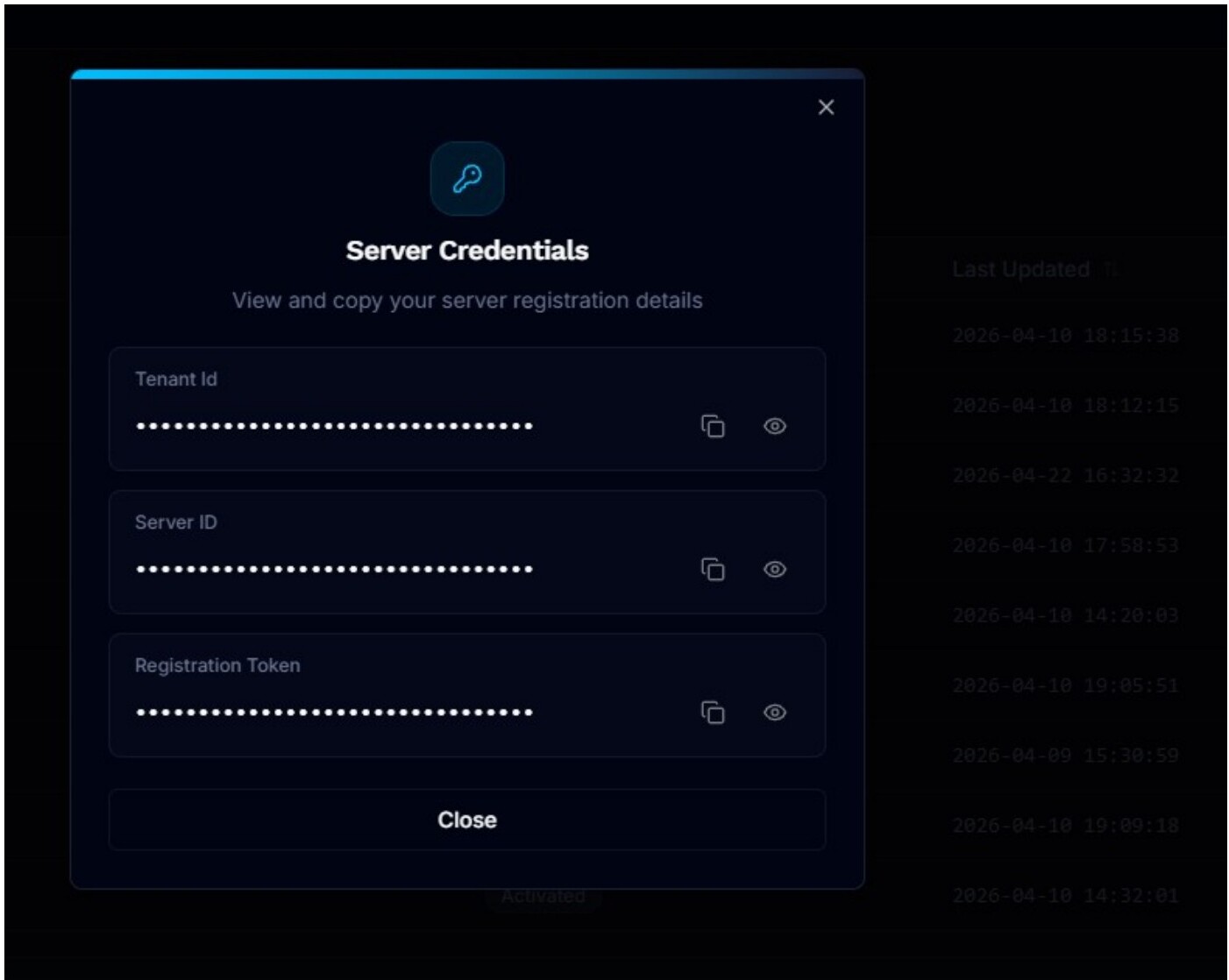
- Open Server Dashboard → Server List.
- Select the server you just registered.
- Open the action menu and choose View API Secrets.
- Copy the Tenant ID, Server ID, and Registration Token.
Step 3 — Windows server onboarding
Download and install
- From the server action menu, choose Download Agent.
- Extract the package on the Windows server.
- Open PowerShell as Administrator.
- Install the services using the package instructions.
Use the provisioning helper with the credentials you copied earlier:
./provision_helper.exe --server-url https://sepi.seqops.io:8443/api --server-id <server_id> --registration-token <registration_token> --tenant-id <tenant_id>
Verify Windows services
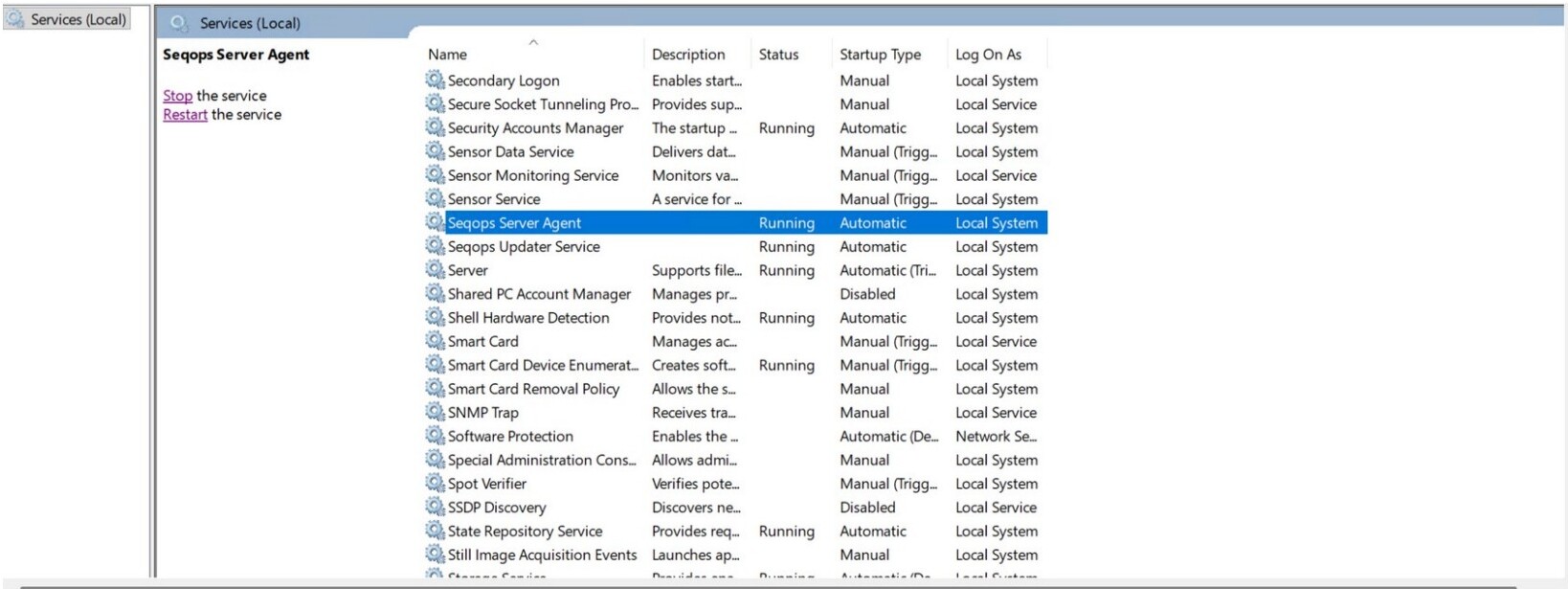
- Open Services on the Windows server.
- Confirm both services are present and running:
- •Seqops Server Agent
- •Seqops Updater Service
Step 4 — Linux server onboarding
Download the Linux package
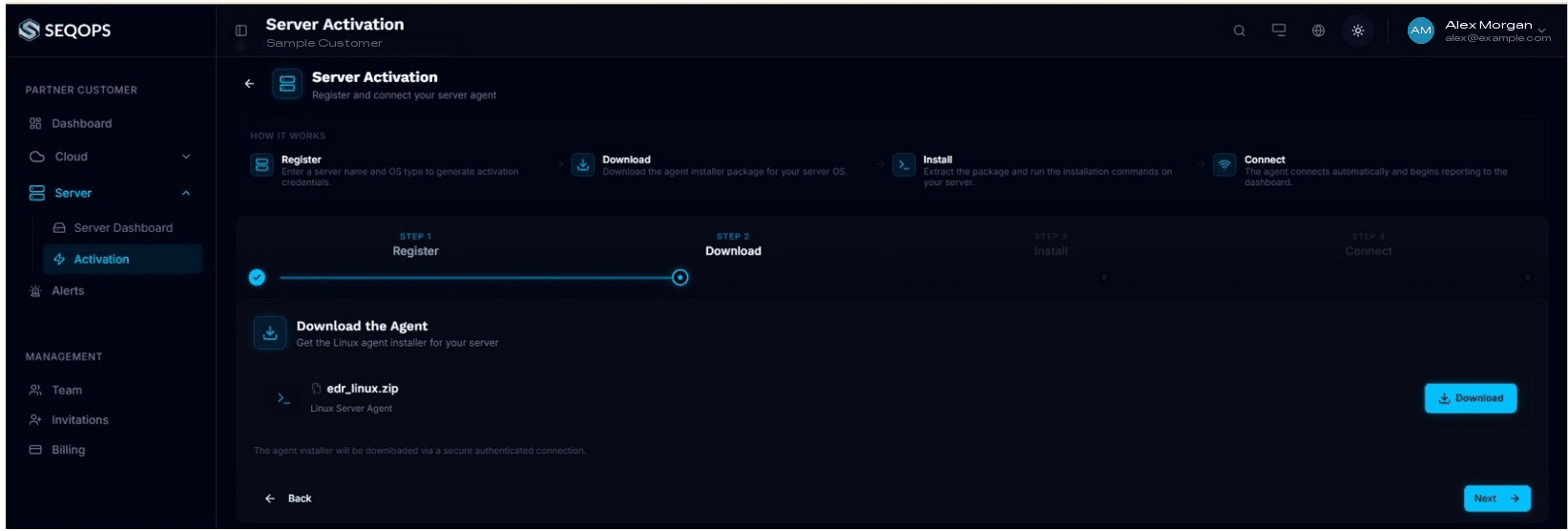
- Open the registered server from Server → Activation.
- Go to the Download step.
- Download the Linux agent package from the platform.
Install the Linux agent
- SSH into the Linux server.
- Extract the downloaded package.
- Confirm the extracted files are present.

-
Install the services:
sudo ./serveragent --install
sudo ./edr_updater --install
-
Register the server with the provisioning helper:
sudo ./provision_helper --server-url https://sepi.seqops.io:443/api --server-id <server_id> --registration-token <registration_token> --tenant-id <tenant_id>
Verify Linux services
Run:
systemctl status serveragent

systemctl status edr-updater
Confirm both services are installed, enabled, and running.
Step 5 — Final verification
After onboarding either Windows or Linux:
- •Confirm the server remains visible in Server List.
- •Verify the provisioning helper completed without errors.
- •Confirm the agent services remain active after installation.
- •Return to SeqOps after the sync window to verify that data begins populating.
Troubleshooting
- •If the server does not appear, re-check the credentials copied from View API Secrets.
- •If the provisioning command fails, verify the server URL and IDs before retrying.
- •If services do not stay running, review the local service logs on the server.
- •If data does not appear after 24 hours, contact support@seqops.io with the host OS and the exact error message you encountered.