
Customer Environment Management
Partner-Assisted
Cloud Onboarding: AWS, Azure & GCP
Customer-facing onboarding guide for connecting AWS, Azure, and GCP environments to SeqOps with key setup screenshots.
Overview
Use this guide to connect AWS, Azure, and GCP environments to SeqOps for vulnerability and configuration analysis. Each provider uses a read-only connection model so your team can validate access before saving credentials.
Before you start
- •Confirm the customer can sign in to SeqOps successfully.
- •Make sure you have the required administrator permissions in the target cloud platform.
- •Keep in mind that cloud inventory and findings can take 6–24 hours to appear after credentials are saved.
Step 1 — Invite the customer
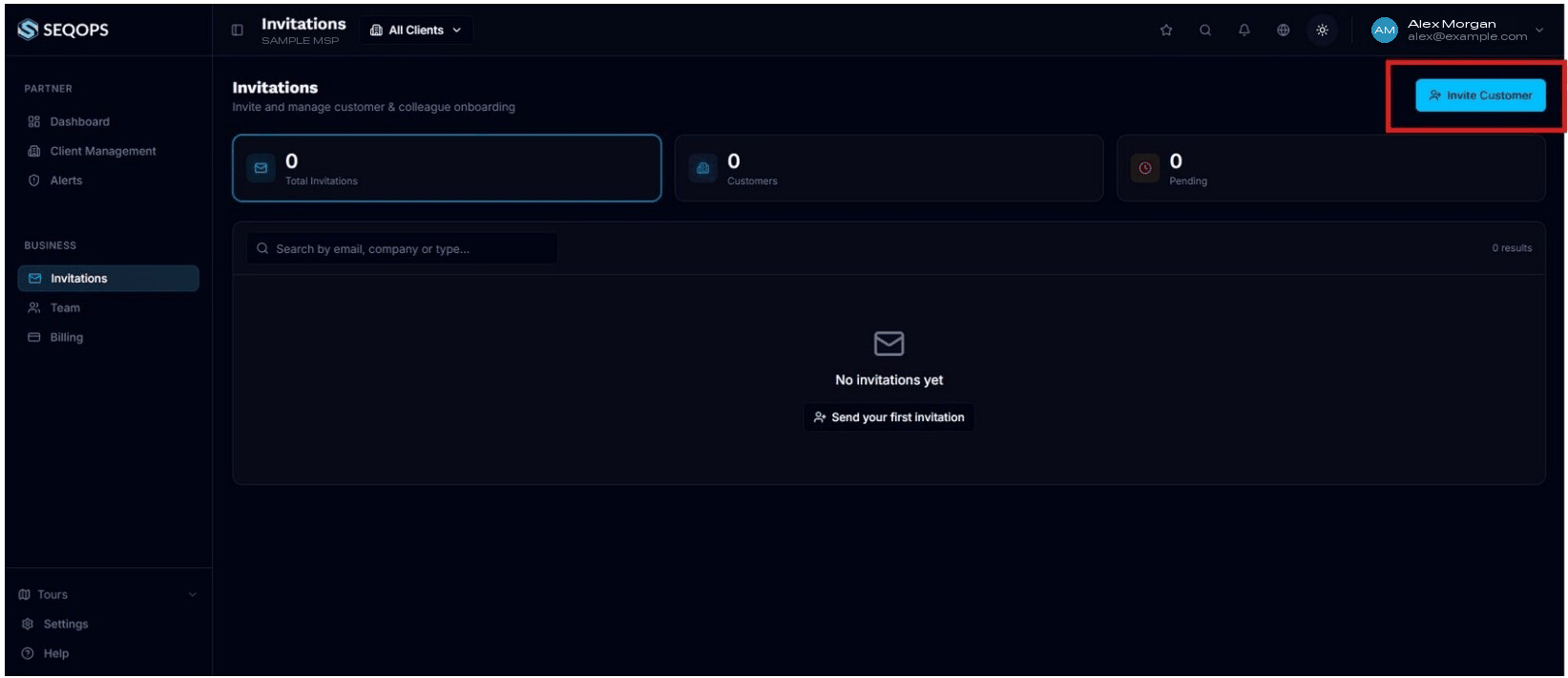
- Sign in to SeqOps.
- Open Invitations.
- Click Invite Customer.
- Enter the customer's email address and send the invitation.
- Ask the customer to complete registration and confirm they can sign in before you continue.
Step 2 — Connect AWS
Prerequisites
- •An AWS account with permission to create or access read-only IAM credentials.
- •The AWS account details needed by your team for monitoring.
- Open Cloud → Activation in SeqOps.
- Choose Add Amazon Account Details.
- Follow the guided instructions to prepare the AWS credentials.
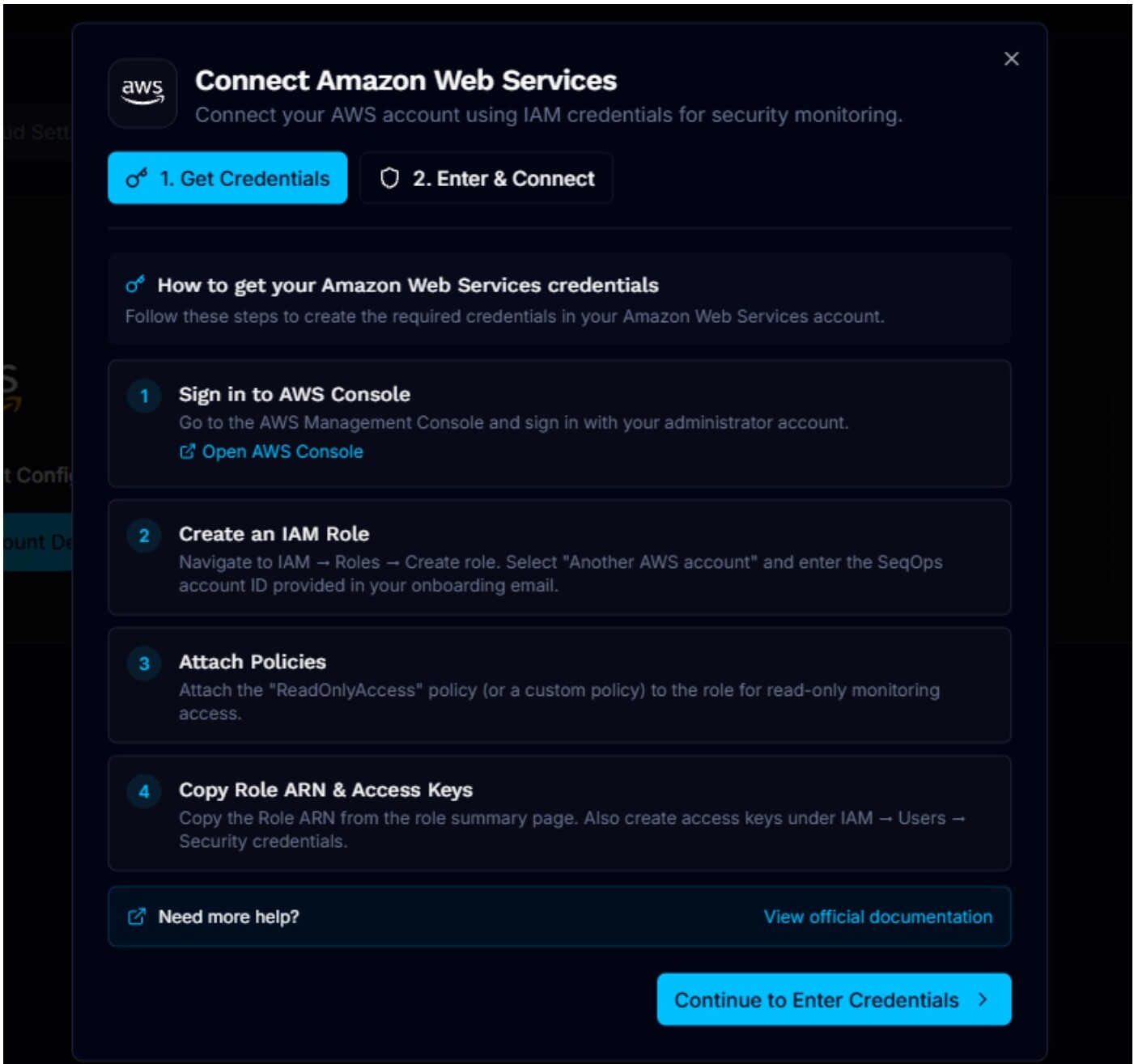
- Continue to the credential entry step.
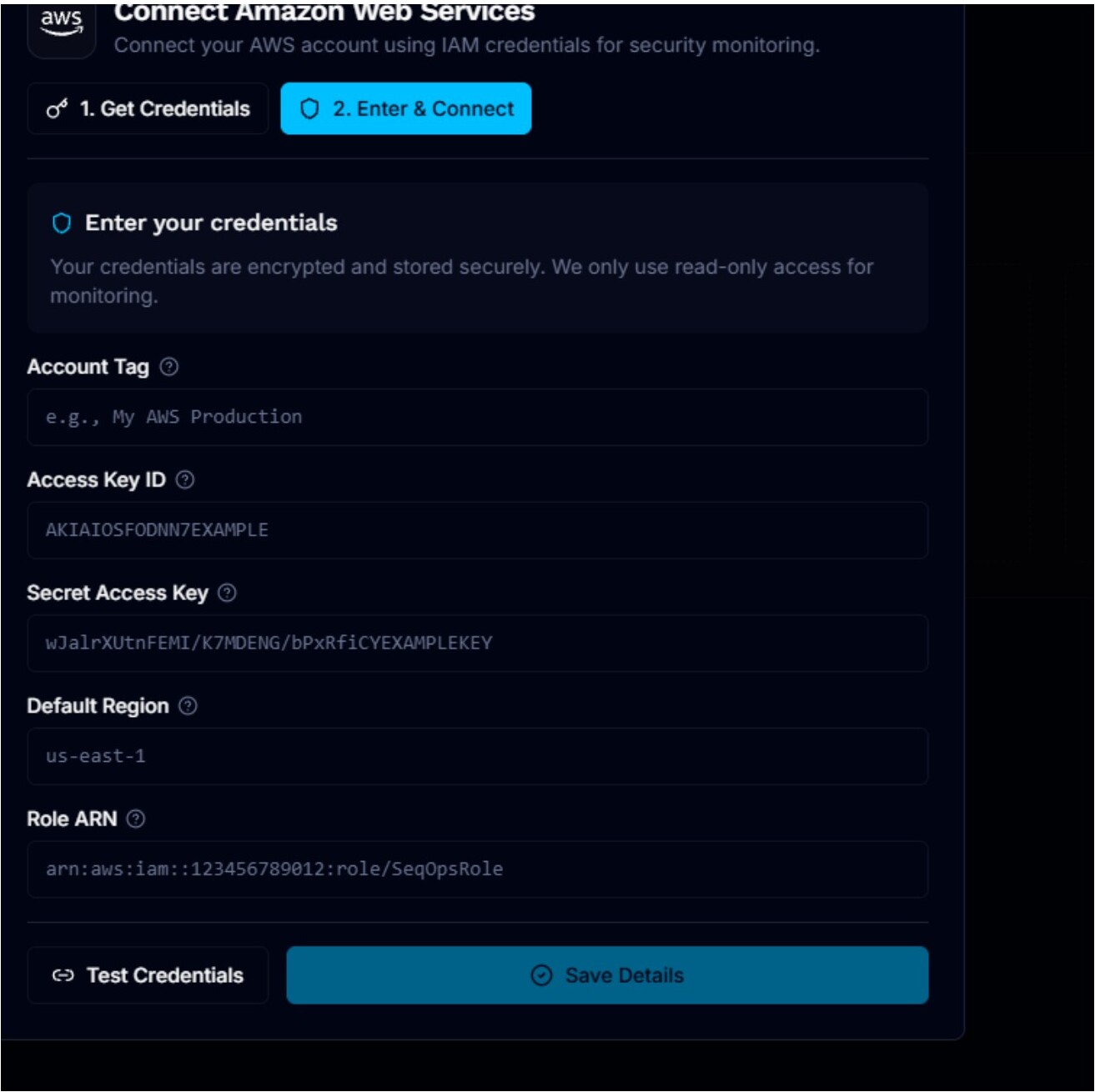
- Enter the Account Tag, Access Key ID, Secret Access Key, Default Region, and Role ARN.
- Click Test Credentials.
- After validation succeeds, click Save Details.
Step 3 — Connect Azure
Prerequisites
- •An Azure subscription with permission to register an application.
- •Permission to create a client secret and assign a Reader role.
- Open Cloud → Activation in SeqOps.
- Choose Add Azure account details.
- Follow the guided Azure setup steps in SeqOps.
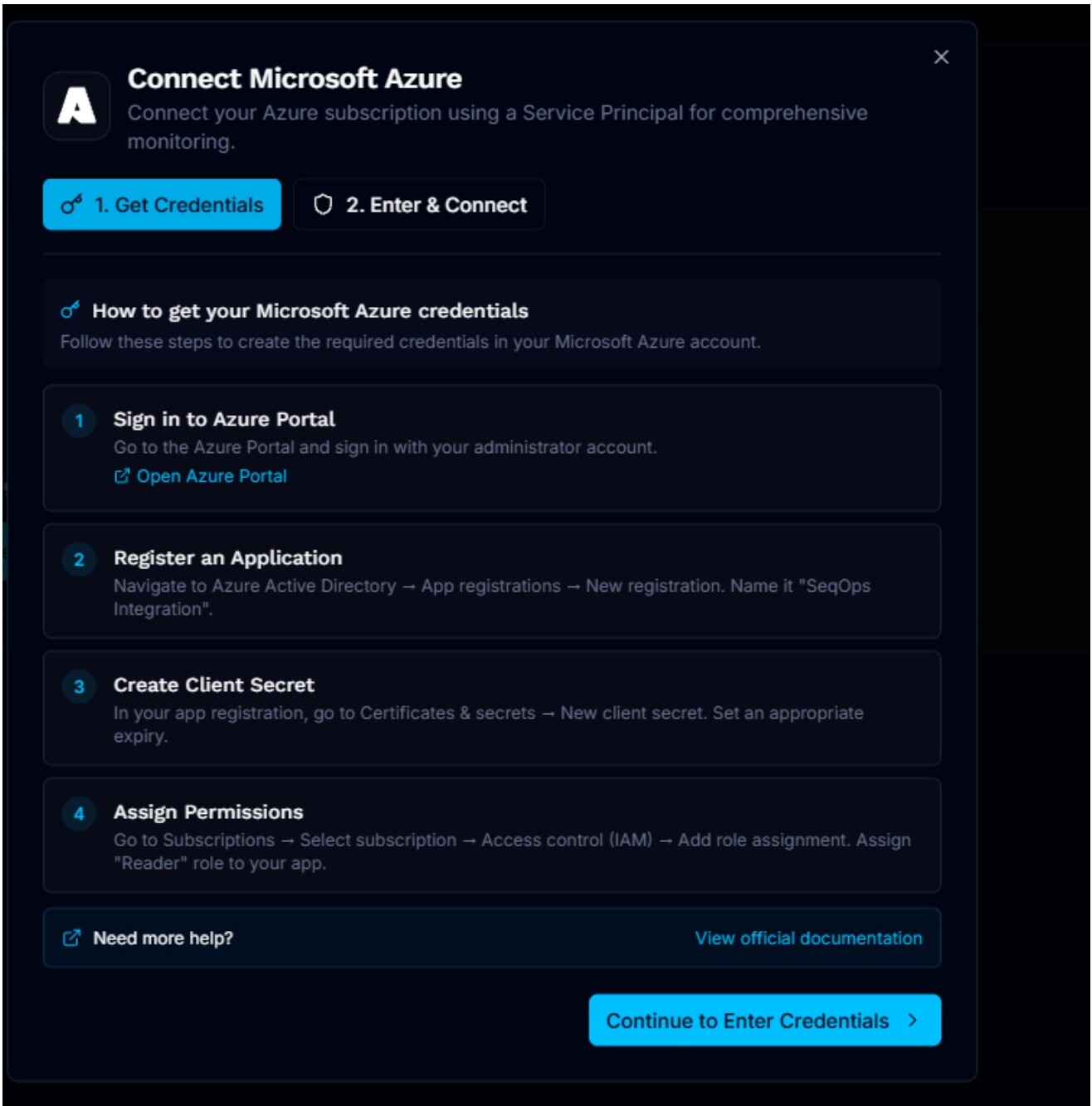
- Continue to the credential entry step.
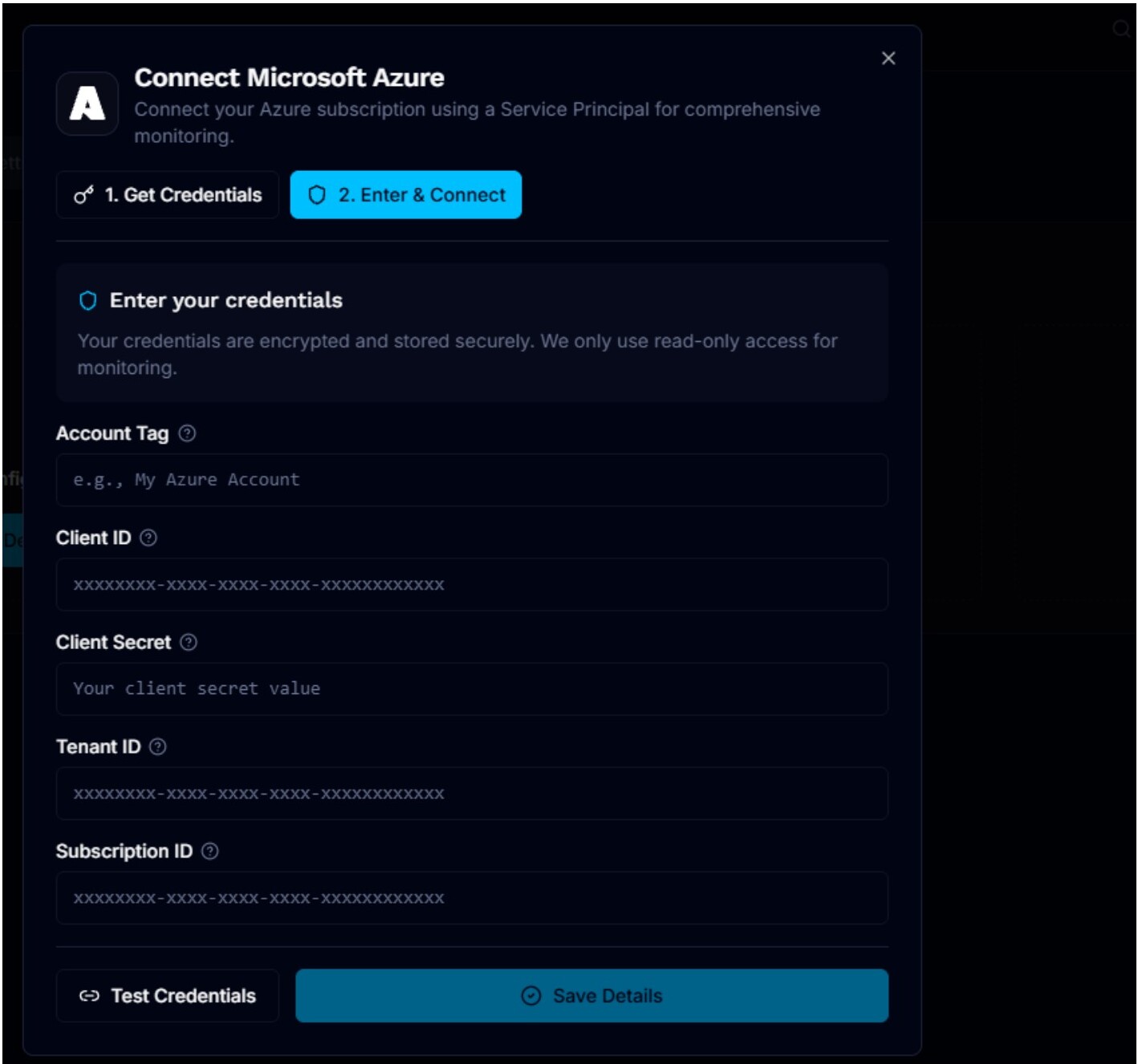
- Enter the required Azure values from your app registration and subscription setup.
- Click Test Credentials.
- When the test succeeds, click Save Details.
Step 4 — Connect GCP
Prerequisites
- •A GCP project with permission to create a service account.
- •Permission to assign read-only roles and download a JSON key.
- Open Cloud → Activation in SeqOps.
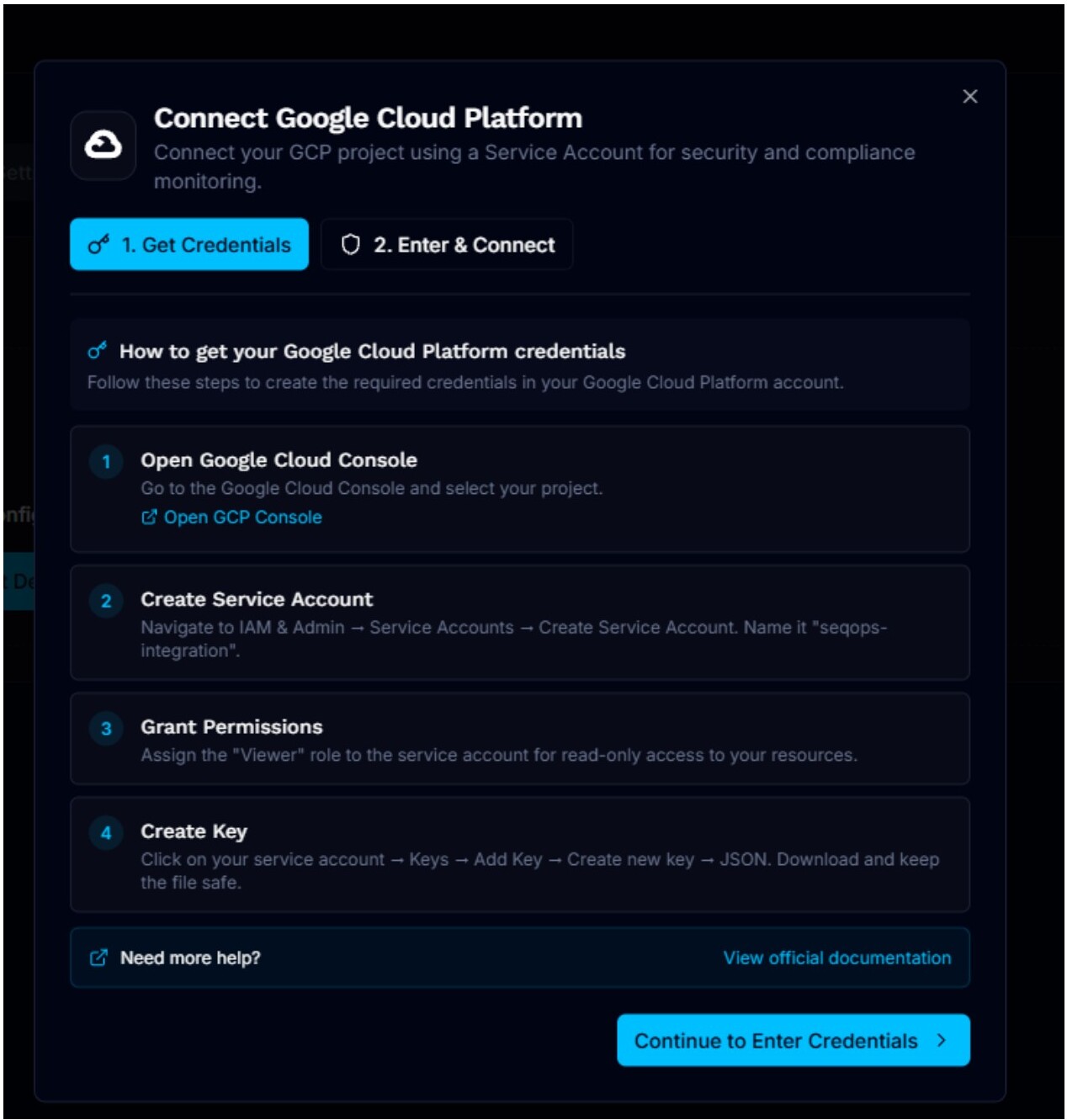
- Choose Add Google Account Details.
- Follow the guided steps to create the service account and key.
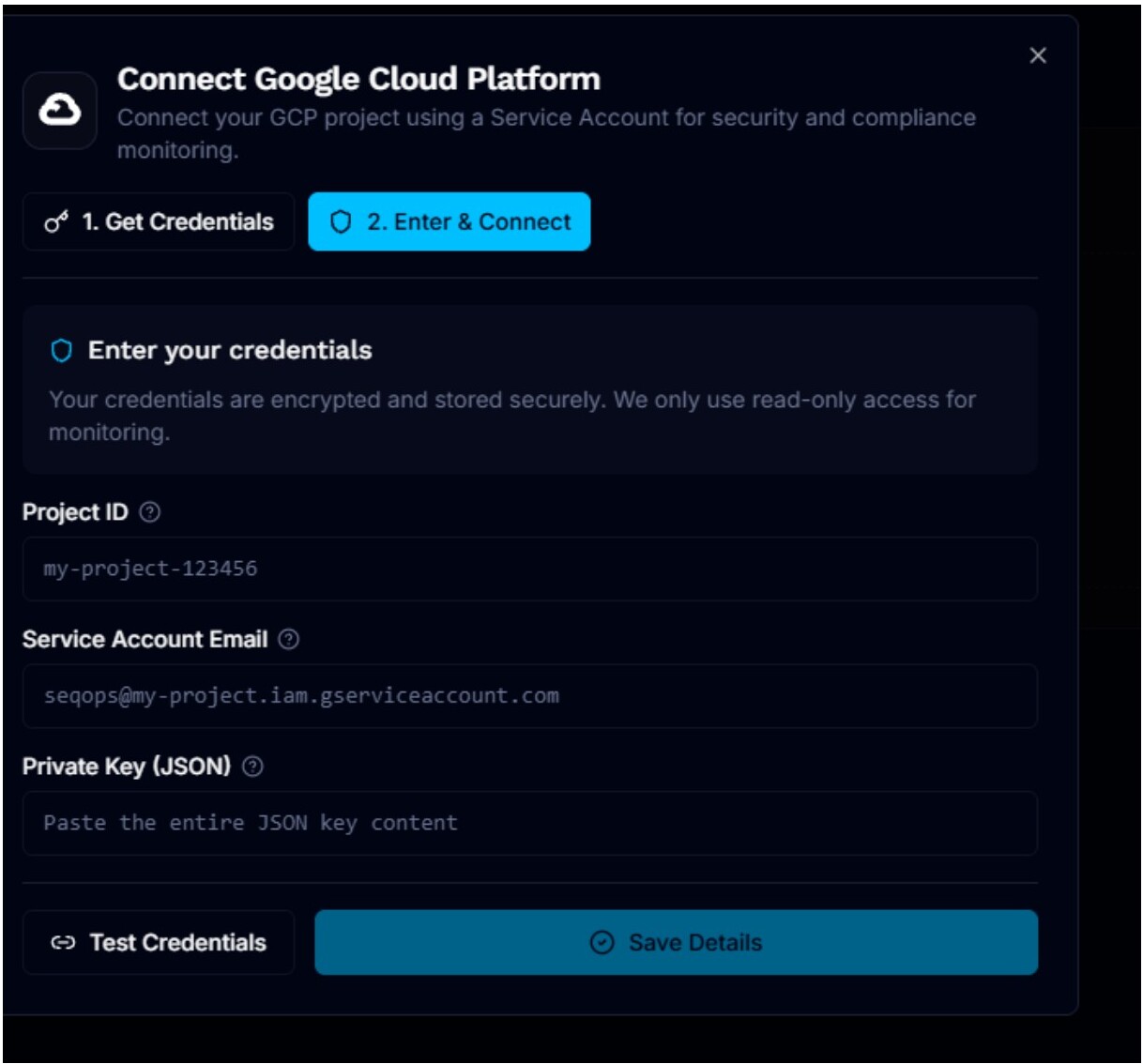
- Continue to the credential entry step.
- Enter the Project ID, Service Account Email, and the JSON private key content.
- Click Test Credentials.
- After a successful test, click Save Details.
Step 5 — Verify the cloud connection
After saving credentials for AWS, Azure, or GCP:
- •Confirm the connected environment appears in SeqOps.
- •Check that the connection status shows as active or valid.
- •Verify that resource inventory starts to populate.
- •Return after the sync window to review findings and configuration results.
Troubleshooting
- •Re-check the permissions granted to the IAM role, application, or service account.
- •Re-run Test Credentials before saving again.
- •Confirm that the correct account, subscription, or project values were entered.
- •If data does not appear after 24 hours, contact support@seqops.io with the provider name and any validation error you received.
onboardingcloudawsazuregcpactivationcredentialsiamservice-account